
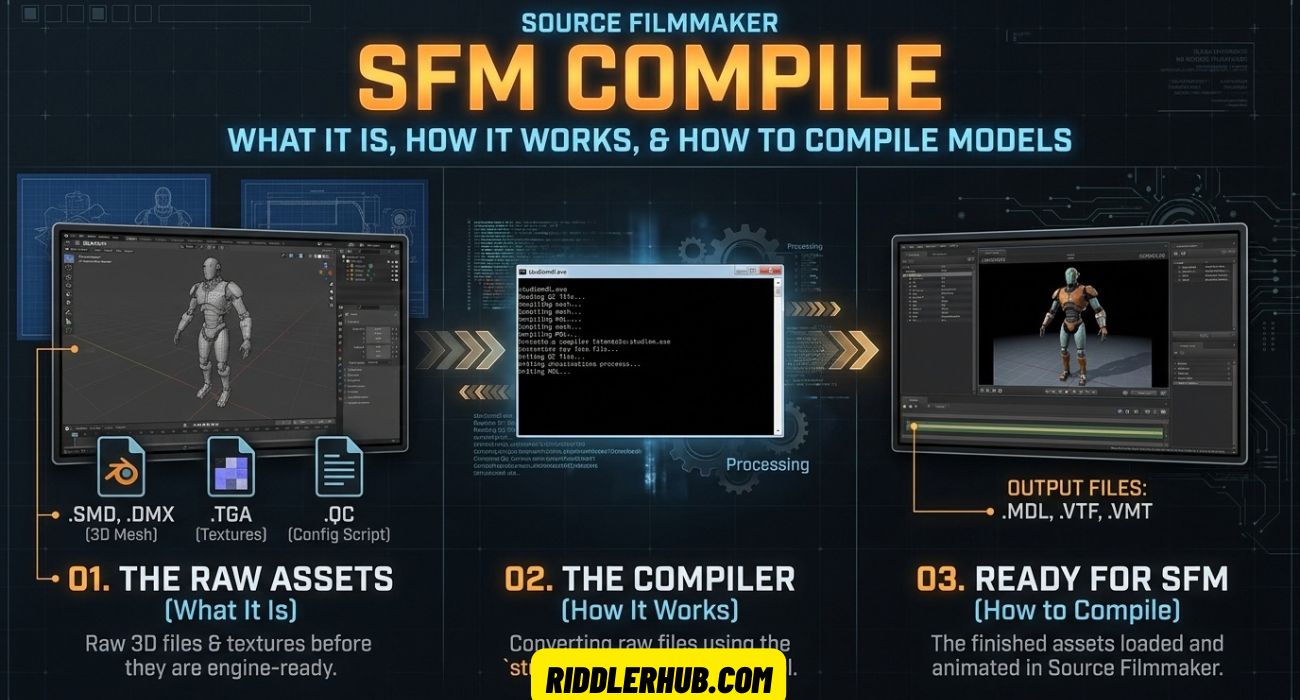
SFM Compile Meaning: What It Is, How It Works, and How to Compile Models
If you have searched for “sfm compile,” you are probably trying to understand how a 3D model goes from a collection of source files into something that Source Filmmaker (SFM) can actually load, animate, and render.
In simple terms, SFM compiling is the process of converting model source files into the formats and game assets that Source Filmmaker can use. The process commonly involves a QC file, model compiler tools, textures, materials, and a destination folder inside the appropriate SFM game or content directory.
This guide explains the entire workflow, from the software you need to writing a basic QC file, compiling a model, fixing common errors, and troubleshooting models that fail to appear correctly in SFM.
What Does “SFM Compile” Actually Mean?
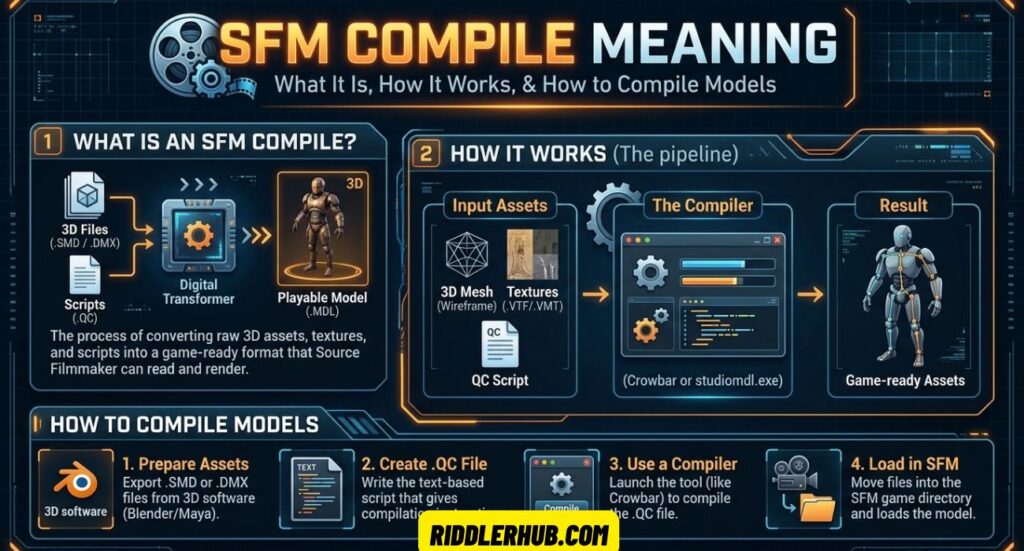
The term SFM compile can refer to two closely related things.
First, it can mean the actual process of compiling a 3D model for Source Filmmaker. A model may begin as editable source data such as an .SMD, .DMX, or similar model file, along with textures and other supporting assets. A compiler processes those files according to instructions contained in a QC file.
Second, people sometimes use “SFM compile” more generally when discussing the tools, commands, or workflow required to make a custom model work in SFM.
The basic process looks like this:
Source model → QC file → Model compiler → Compiled model → SFM content folder → Model loaded in SFM
A successful compile normally produces model-related files such as:
.mdl— the main compiled model file.vvd— vertex data.dx90.vtxor related VTX files — model optimization/rendering data- Material files such as
.vmt - Texture files such as
.vtf
The exact output can depend on the Source engine branch and the compiler being used.
Why can’t SFM simply open the original model?
Source Filmmaker does not normally treat a modeling-project file as a finished Source engine model.
A model created in Blender, Maya, 3ds Max, or another application contains information intended for that particular modeling environment. Source needs its own compiled representation, including information about meshes, bones, materials, hitboxes, animations, and other model properties.
That is why compiling is an important part of the SFM custom-model workflow.
How Model Compiling Fits Into the SFM Pipeline
Model creation and model compiling are different stages.
A simplified SFM asset pipeline is:
- Create or obtain a 3D model
- Prepare the mesh and skeleton
- Create or organize textures
- Export the model into a Source-compatible intermediate format
- Write a QC file
- Compile the model
- Place the resulting files in the correct SFM directory
- Launch or refresh SFM
- Load and test the model
- Fix materials, rigging, physics, or other problems if necessary
The QC file acts like a set of instructions for the compiler.
It tells the compiler things such as:
- What the model should be called
- Which mesh files to use
- Where materials are located
- Which skeleton or bones are present
- Whether animations should be included
- Which physics or collision data should be used
- What other model properties should be generated
This is why understanding QC syntax is useful even if you do not consider yourself a programmer.
The Software You Actually Need
You do not need an enormous collection of development tools to get started. The exact setup depends on your model and workflow, but several tools are commonly useful.
Source Filmmaker (Free)
Source Filmmaker is the application in which you ultimately want to use the model.
SFM is based on Valve’s Source technology and provides tools for animation, posing, lighting, cameras, particles, and rendering.
It is important to remember that SFM itself is not the main model compiler. You generally prepare and compile assets using external tools before using them in your SFM project.
3D Modeling Software
A modeling application is useful when you are creating or editing the actual mesh.
Common choices include:
- Blender
- Autodesk Maya
- 3ds Max
Blender is particularly popular because it is free and supports a wide range of modeling, UV, rigging, and export workflows.
You may not need a modeling program at all if you are simply porting an existing model that already contains the required source files.
Compiling Tools
A commonly used tool for Source model compilation is Crowbar.
Crowbar can provide a graphical interface around several Source-engine workflows, including compiling and decompiling models.
For beginners, a GUI-based tool can be much easier than manually managing command-line compiler paths and arguments.
Depending on the Source game or engine branch involved, the exact compiler and available features may differ.
See Also : Snapjotz com: What Is Snapjotz and How Does It Work?
Understanding the QC File
The QC file is one of the most important parts of the SFM compile process.
Think of it as a build instruction file for your model.
Instead of manually telling the compiler what every file means through a graphical interface, you place the relevant commands into a text-based .qc file.
A QC file can specify:
- Model name
- Source mesh
- Material directory
- Body groups
- Skeleton information
- Animation files
- Collision model
- Texture paths
- Compile options
The compiler reads these instructions and generates the Source model.
Key QC Commands Explained
Several commands appear frequently in Source model QC files.
$modelname
Defines the path and filename of the compiled model.
Example:
$modelname "custom/my_character.mdl"This determines where the resulting model is associated within the Source file system.
$body
Specifies the main model mesh.
$body "body" "my_character.smd"The exact file name must correspond to your exported model.
$cdmaterials
Specifies the material search path.
$cdmaterials "models/my_character"This is especially important when your model loads but appears with missing or incorrect textures.
$sequence
Defines an animation sequence.
For example:
$sequence "idle" "idle.smd" loopThe actual syntax depends on the animation and model setup.
$collisionmodel
Specifies a physics or collision mesh.
$collisionmodel "physics.smd"
{
    $concave
}
A collision model is useful when the model needs appropriate physics behavior.
$surfaceprop
Specifies a surface property.
$surfaceprop "flesh"The appropriate value depends on the type of object and the behavior you want.
A Simple Annotated Example
A very basic QC structure might look like this:
$modelname "custom/my_model.mdl"

$body "body" "my_model.smd"

$cdmaterials "models/custom"

$surfaceprop "default"

$sequence "idle" "idle.smd" loop fps 30
This is only an illustrative example. A production-ready QC file may require additional commands for bones, attachments, flexes, animations, physics, bodygroups, or other features.
The important idea is that the QC file connects the source assets with the compiled model definition.
Step-by-Step: How to Compile a Model for SFM
The exact workflow varies depending on where the model came from, but the following process is a useful starting point.
1. Prepare the model
Make sure your mesh is ready for export.
Check:
- Scale
- Orientation
- UV mapping
- Materials
- Bone structure
- Weight painting
- Naming
- Polygon or geometry problems
If you are porting an existing model, confirm that you have permission to use and redistribute its assets where applicable.
2. Export the model
Export the mesh into a Source-compatible intermediate format supported by your workflow.
Common Source workflows use formats such as:
- SMD
- DMX
Do not assume that simply renaming a file extension will make an incompatible model work. The exported file needs to contain the appropriate model information.
3. Prepare the textures and materials
Source models generally rely on material definitions and texture files.
A typical structure might resemble:
models/
    custom/
        my_model/
            my_model.vmt
            my_model.vtf
The exact directory layout depends on your QC configuration.
4. Create the QC file
Create a text file with the .qc extension.
Add the relevant commands for:
- Model name
- Mesh
- Materials
- Animations
- Physics
- Other required model features
Make sure filenames and paths match the actual files.
5. Choose the correct compiler
Configure your compiler for the appropriate Source/SFM environment.
If you are using Crowbar, verify that its compiler configuration points to the intended model compiler and game/SFM installation.
6. Compile the model
Run the compile process.
Watch the compiler output carefully. If the process reports an error, do not immediately assume that the model itself is broken. The problem may simply be an incorrect path, missing file, invalid QC command, or incompatible asset.
7. Check the output files
After compilation, look for the generated model files.
You should normally see the main .mdl file accompanied by related compiled model files.
If the compiler reports success but no usable model appears, check the output directory and paths before recompiling repeatedly.
8. Copy assets into the correct SFM directory
The compiled model and its supporting materials need to be located where SFM can find them.
A path mismatch is one of the most common reasons a perfectly compiled model appears to be missing.
9. Test the model in SFM
Launch Source Filmmaker and attempt to load the model.
Check:
- Does it appear in the model browser?
- Does the mesh display?
- Are the textures correct?
- Are the bones working?
- Are facial controls available?
- Does the model have the expected animations?
Testing each component separately makes troubleshooting much easier.
Common SFM Compile Errors and How to Fix Them
Compilation errors are often more informative than they initially appear.
“File Not Found”
Usually means the QC file points to a file that does not exist at the expected location.
Check:
- Filename spelling
- Folder location
- File extension
- Relative paths
- Case-sensitive paths where relevant
“Could Not Load File”
This can indicate that the compiler cannot interpret or access the specified source file.
Verify that the file was exported correctly and is supported by the compiler you are using.
Missing Textures
If the model exists but its textures are missing, check the material path.
Make sure:
- The
.vmtfiles exist - The
.vtftexture files exist $cdmaterialspoints to the correct location- Material names correspond to the model’s material references
Purple-and-Black Checkerboard
The familiar purple-and-black checkerboard generally indicates a missing or unavailable texture/material.
The model itself may have compiled successfully.
Check the material path and confirm that SFM can locate the required .vmt and texture files.
Model Compiles but Does Not Appear
Check the compiled output and installation path.
Potential causes include:
- Wrong game directory
- Wrong model path
- Missing compiled companion files
- Incorrect
$modelname - SFM content path problems
- Incorrect compiler configuration
Bone or Rigging Problems
A model can compile while still having problems with its skeleton.
Symptoms can include:
- Broken posing
- Incorrect bone positions
- Detached geometry
- Strange deformation
- Missing controls
These issues usually require checking the exported skeleton, weights, bone names, and QC configuration.
Best Practices for Clean, Reliable Compiles
A few habits can save considerable troubleshooting time.
Keep source files organized
Use separate folders for:
source/
export/
qc/
materials/
compiled/
This makes it much easier to identify where a problem originates.
Use simple filenames
Avoid unnecessarily complicated filenames and directory structures.
For example:
my_character.smd
my_character.qc
my_character_idle.smd
is easier to manage than a collection of ambiguous filenames.
Keep paths consistent
If your QC specifies:
$cdmaterials "models/custom/robot"make sure the corresponding material files actually exist in that location.
Test one change at a time
If a compile fails, change one relevant thing and compile again.
Changing ten different settings at once makes it difficult to identify what fixed the problem.
Keep backups
Save working versions of:
- QC files
- SMD/DMX files
- Blender or other source projects
- Materials
- Textures
A working compile is worth preserving before experimenting with major changes.
See Also : Glossywise Com Review 2026: An Honest Look at This Growing
Where to Get Models, Assets, and Ports
You can create your own models or work with assets created by other artists.
Possible sources include:
- Your own Blender projects
- Community-created Source assets
- SFM model repositories
- Steam Workshop content
- Models released by their original creators
- Ports created specifically for Source-based applications
However, availability does not automatically mean permission to redistribute or re-upload an asset.
Before using a model in a public project, check its license and the creator’s stated permissions.
Pay particular attention to:
- Commercial-use restrictions
- Attribution requirements
- Redistribution rules
- Porting restrictions
- Required credits
- Whether modified versions may be shared
If you only need an asset for personal experimentation, the practical situation may differ from public redistribution, but you should still respect the creator’s terms.
Rigging and Animation Basics Once Your Model Is Compiled
Compiling the model is not necessarily the end of the workflow.
Once it appears in SFM, you may want to pose or animate it.
A properly prepared model can contain:
- Bones
- Skin weights
- Animation sequences
- Facial flexes
- Attachments
- Bodygroups
Bones
Bones allow you to pose different parts of the model.
If a character’s arms move incorrectly, the problem may be related to bone weights rather than the compile itself.
Skinning and Weight Painting
Weight painting determines how mesh vertices respond when bones move.
Poor weighting can produce:
- Collapsing elbows
- Twisted limbs
- Stretching
- Detached-looking geometry
These issues are normally fixed in the modeling software before compiling again.
Animations
Animation sequences can be included through QC commands such as $sequence.
This allows the compiled model to contain predefined motions such as:
- Idle animations
- Walk cycles
- Gestures
- Facial animations
SFM can then use these assets within an animation project.
Troubleshooting: When SFM Won’t Load Your Compiled Model
If the compiler finishes but SFM cannot find the model, work through the problem systematically.
Step 1: Confirm the .mdl exists
Search the output directory for the compiled model.
If it is missing, the compile may not have completed successfully.
Step 2: Check the model path
Compare the path specified in:
$modelnamewith the location where you expect the model to appear.
Step 3: Verify the supporting files
A .mdl file is not necessarily enough.
Check for the other compiled model files produced by the compiler.
Step 4: Check materials
If the model loads but is invisible, gray, or covered in checkerboard textures, investigate the material and texture paths.
Step 5: Restart or refresh SFM
If you have changed files while SFM is running, restarting the application can help ensure that the updated assets are detected correctly.
Step 6: Read the console output
SFM and Source tools can provide useful error messages.
Instead of guessing, look for the first relevant error and work backward from it.
SFM Compile Workflow for Beginners: Where to Start
If you are completely new to Source model compiling, avoid starting with a complicated character port containing dozens of animations, facial flexes, bodygroups, and custom physics.
Start with a simple static model.
A good learning progression is:
Basic mesh → Basic QC → Successful compile → Materials → Skeleton → Physics → Animations → Facial features
This teaches you which part of the pipeline causes each type of problem.
A beginner-friendly workflow might look like this:
| Stage | Goal |
|---|---|
| 1 | Install SFM and required tools |
| 2 | Obtain a simple model |
| 3 | Export a Source-compatible mesh |
| 4 | Create a basic QC file |
| 5 | Compile with the appropriate tool |
| 6 | Install the output into SFM |
| 7 | Test the model |
| 8 | Add materials |
| 9 | Add rigging and animations |
| 10 | Troubleshoot and refine |
The most important lesson is to get one simple compile working before adding complexity.
SFM Compile vs. Garry’s Mod Compile: What’s the Difference?
SFM and Garry’s Mod both use Source technology, but that does not mean every compiled asset will work identically in both environments.
The relevant Source engine branch, model features, compiler behavior, directory structure, and expected content can differ.
A model compiled for one Source-based application may require adjustments before it works properly in another.
For that reason, it is better to treat SFM model compilation and Garry’s Mod model compilation as related but separate workflows rather than assuming that a single QC file will always work everywhere.
Do You Need to Know Coding to Compile an SFM Model?
No.
You do not need to be a programmer to learn SFM compiling.
QC files are text-based configuration files, but basic model compilation mostly involves understanding:
- File paths
- Model files
- Material files
- QC commands
- Compiler settings
- Source directory structures
Once you understand what the common commands do, creating a basic QC file becomes much less intimidating.
More advanced models naturally require more knowledge, especially when working with complicated skeletons, animations, flexes, physics, or custom features.
Is SFM Still Supported by Valve?
Source Filmmaker remains a Valve-developed application available through Steam, but users should distinguish between an application being available and receiving active feature development comparable to Valve’s newer products.
The practical SFM community continues to rely heavily on existing tools, tutorials, community knowledge, custom assets, and third-party utilities.
Because Valve’s support and software plans can change, check the current official Steam listing and Valve documentation for the latest status rather than relying on old tutorials.
Frequently Asked Questions
What is a QC file used for in SFM compiling?
A QC file provides instructions to the Source model compiler. It can define the model’s name, mesh files, material paths, animations, physics, sequences, and other model properties.
Why does my compiled model show up as a purple-and-black checkerboard?
The purple-and-black checkerboard usually indicates that SFM cannot find or load the required material or texture. Check the .vmt, .vtf, material directory, and texture paths.
Can I compile models without Crowbar?
Yes. Crowbar is a convenient tool, not the fundamental concept behind compiling. Source model compilers can also be used through other workflows, including command-line approaches, provided you have the correct compiler and configuration for your target environment.
Is Source Filmmaker still supported by Valve?
SFM remains available, but its development and support situation should be distinguished from actively developed Valve applications. For current information, consult Valve’s official sources and the current Steam listing.
What’s the difference between compiling for SFM and compiling for Garry’s Mod?
Both workflows are based on Source technology, but they can target different engine environments and content structures. A model may therefore require different configuration or adjustments to work correctly in each application.
Do I need to know coding to write a QC file?
No. QC files are text-based configuration files rather than conventional programming. Beginners can learn the common commands gradually and build more complex files as needed.
Why does my model compile successfully but not appear in SFM?
Check the $modelname path, compiled output files, SFM game/content directory, and compiler configuration. Also verify that the model’s supporting files were installed in the expected locations.
Why does my model appear but have broken animations?
The problem may be in the skeleton, bone names, weights, animation source files, or QC configuration. A successful compile does not guarantee that the underlying rig and animation data are correct.
Can I use models from other Source games in SFM?
Sometimes, but compatibility is not guaranteed. Models may depend on a particular Source engine branch, materials, textures, animations, or other game-specific assets. You should also respect the original creator’s licensing and redistribution terms.
What is the easiest way to learn SFM compiling?
Start with a simple static model, create a basic QC file, compile it, install it, and verify that it loads. Once that works, add materials, bones, animations, and other features one stage at a time.
Conclusion
SFM compile refers to the process of turning model source assets into a Source-compatible model that Source Filmmaker can load and use.
The core workflow is straightforward once you understand the roles of the main components:
Model files + materials + QC instructions + compiler = compiled SFM model
The QC file tells the compiler what to build, while the compiler converts the source assets into the files that Source can use. Tools such as Crowbar can make this process considerably easier, especially for beginners.
If your first model does not work, focus on the fundamentals: file paths, QC commands, materials, compiler configuration, and the SFM content directory. Most basic problems can be traced to one of those areas.
Once you can successfully compile and load a simple model, you can move on to more advanced features such as rigging, animations, facial flexes, physics, bodygroups, and custom character ports.