Gimkit Host: How to Host a Game and Share the Code
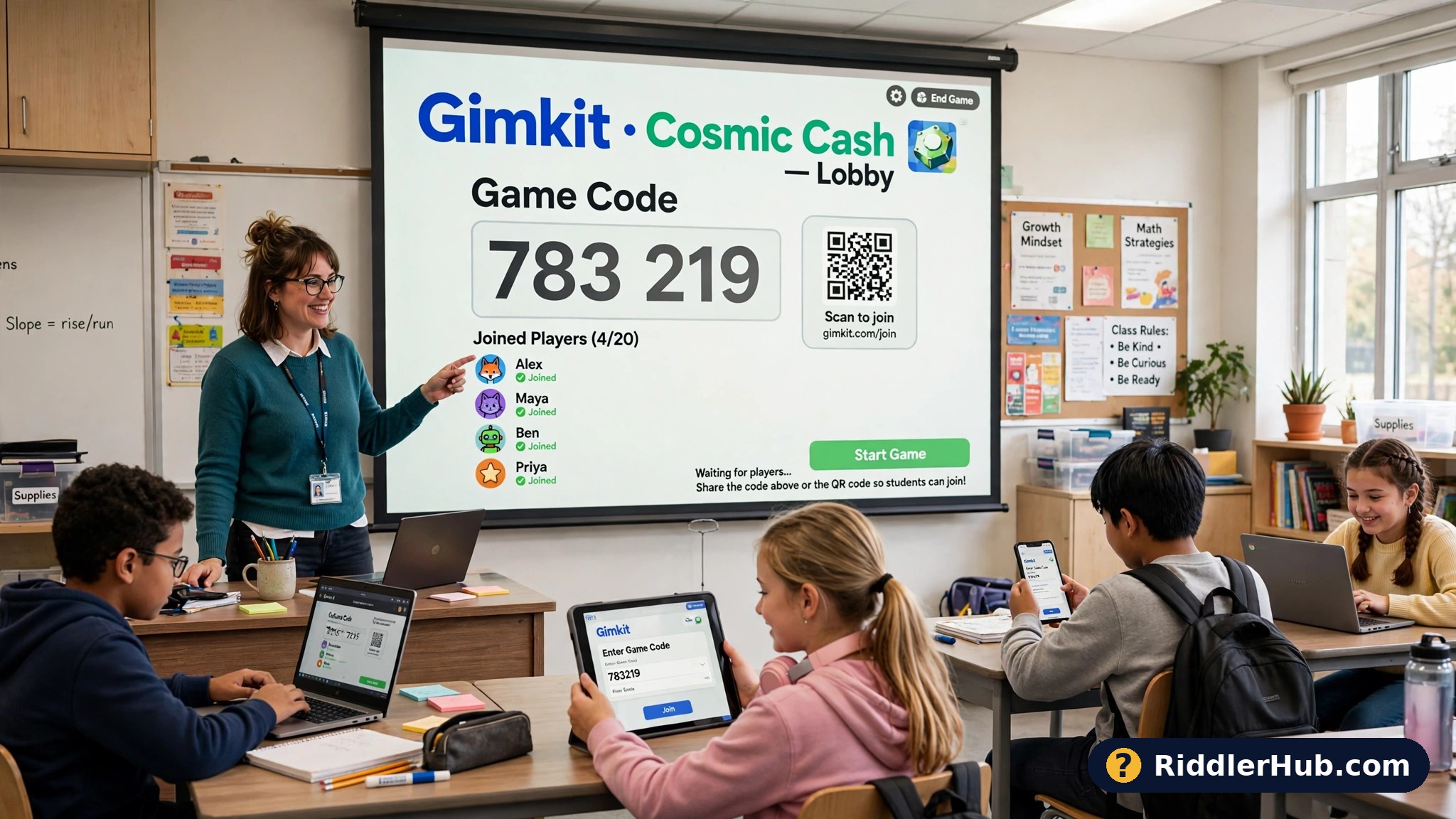
A Gimkit host is the person who starts a live game, chooses a Kit and mode, and controls the session from lobby to results. The host adjusts the game options and shares a code, QR code, or direct link so players can enter. The host signs in with an Educator account, while players normally need no account to join a live game.
Those choices matter because one Kit can become a focused review, team contest, or active 2D challenge. Settings also control late entry and whether players choose names or receive generated nicknames. Good preparation keeps class time focused on questions rather than access, names, or pacing problems.
This guide covers every step, from selecting a Kit and mode to setting options and sharing the lobby code. It also explains joining, limits, controls, reports, troubleshooting, plan differences, and hosting versus joining. You will finish ready to launch and manage a session with fewer interruptions.
What Is a Gimkit Host?
A Gimkit host is not a separate app or student role. It is the signed-in Educator account that turns a Kit—a set of questions—into a live game.
The host selects the mode and goal, reviews names, starts and monitors play, and can end the game early. In 2D modes, the host may play or spectate without losing session control.
Gimkit Host Requirements and Setup Checklist
Have these ready before opening a lobby:
- A free Gimkit Educator account.
- A finished, ready-to-play Kit.
- A signed-in host device.
- A reliable internet connection.
- A projector, class page, or chat for sharing.
- A plan for student display names.
Students in a standard live game need no account. Accounts matter when the host uses Classes or students need account-based progress.
How to Host a Gimkit Game Step by Step?
Step 1 Open the Official Gimkit Website
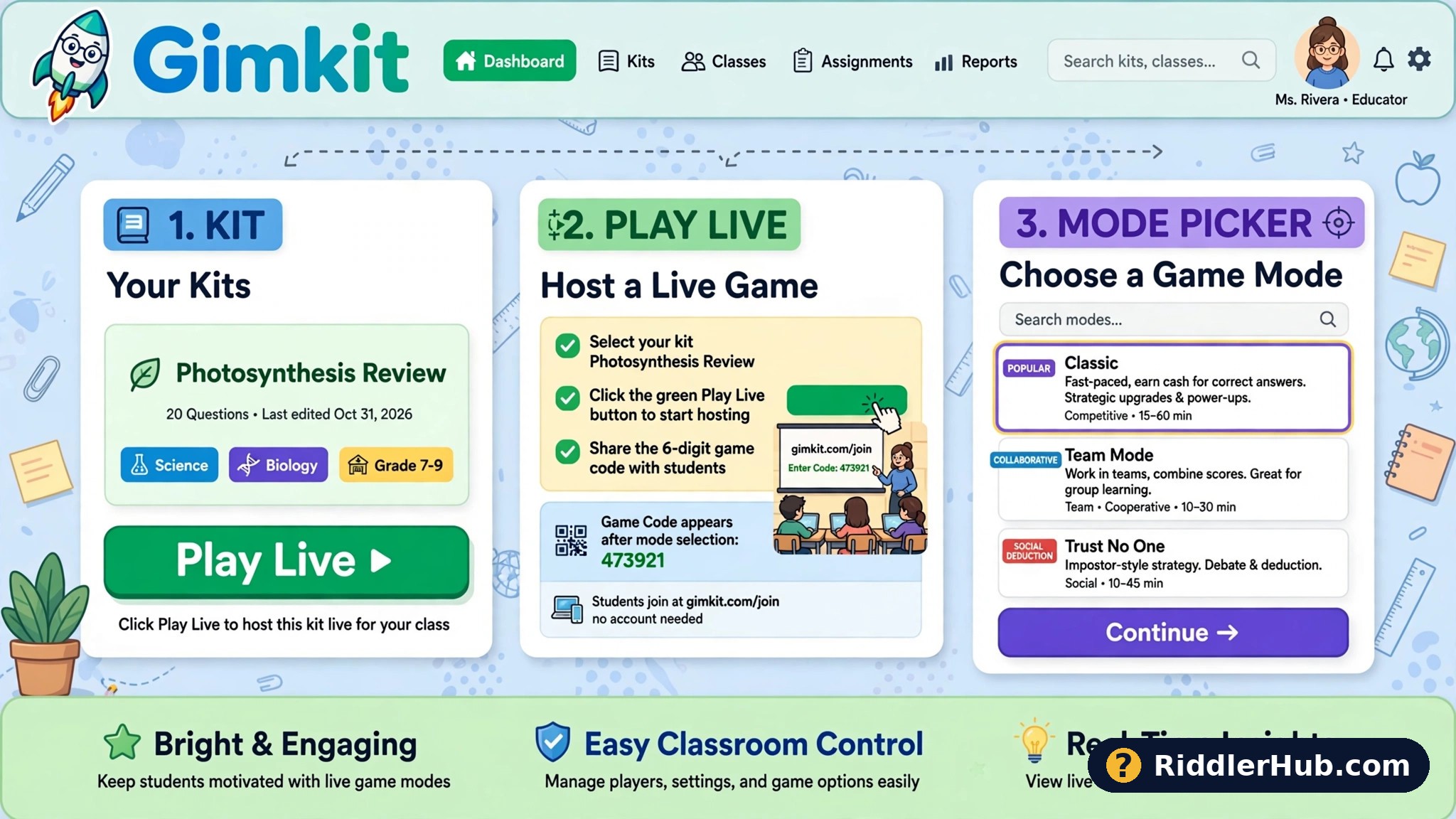
Sign in or create a free Educator account on Gimkit’s official website. Use the dashboard to manage Kits, Classes, games, and reports.
Step 2 Select or Create a Kit
Select a ready Kit, or create one before inviting players. Click Play Live on the dashboard or inside the Kit.
Step 3 Choose a Game Mode
Open the Mode Picker, inspect a mode’s description and labels, and use Learn More for details. Click Continue once your choice has a yellow outline.
Step 4 Customize the Game Settings
Set the goal, class, late-entry, nickname, and mode-specific options for your group and schedule. Click Continue to proceed.
Step 5 Open the Lobby and Share the Code
The Lobby tab opens with a game code. Project it, hover for a QR code, or click it to copy a direct link.
Step 6 Start and Manage the Game
Press Start Game—upper right in non-2D games, lower center in 2D games. Monitor players and use host controls to end the session.
How to Get a Gimkit Host Code?
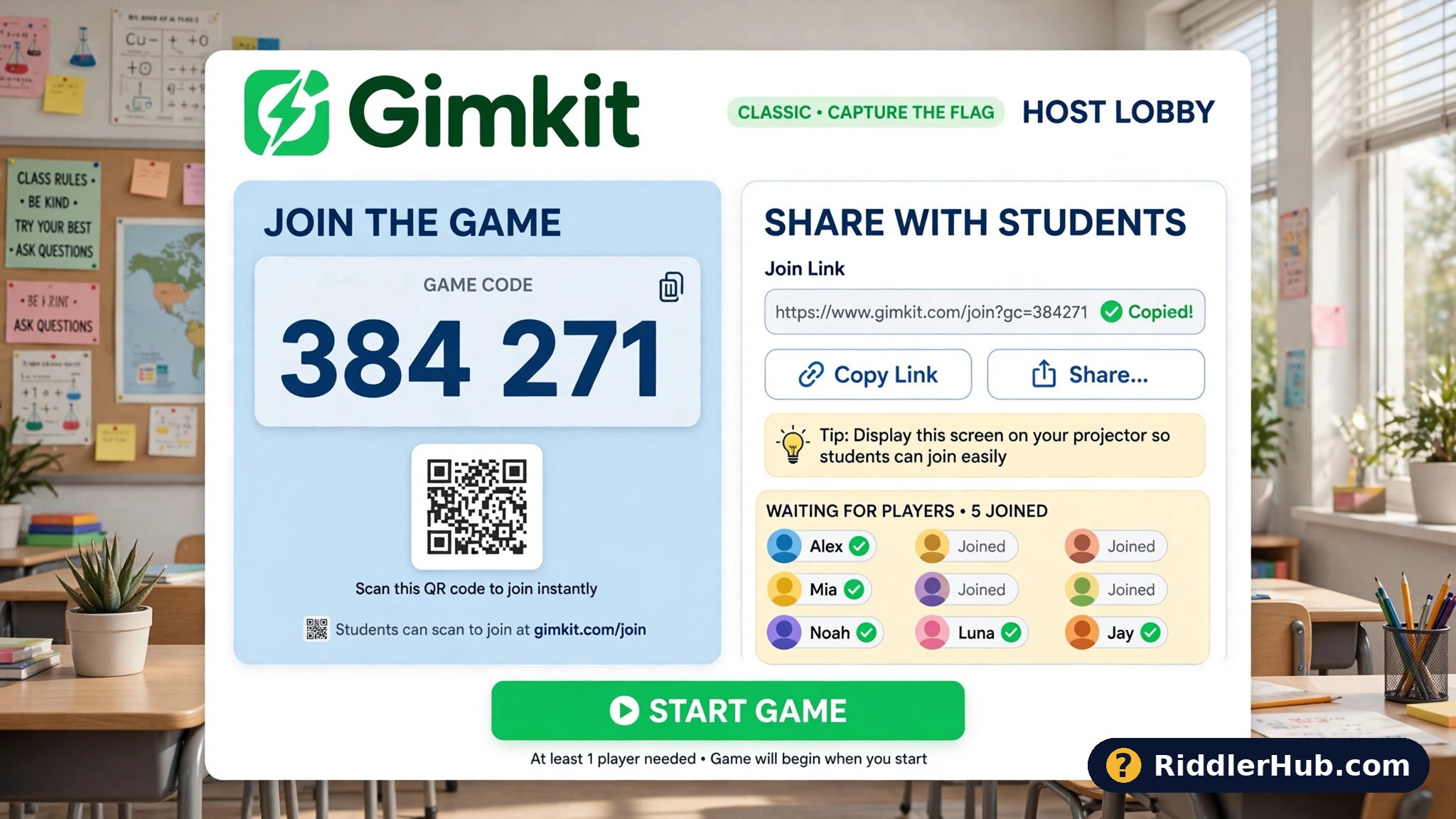
Gimkit creates the code automatically when the lobby opens; there is no separate request button.
| Sharing method | Best situation | Player action |
|---|---|---|
| Game code | Host screen is visible | Types the code on the join page |
| QR code | Players have cameras ready | Scans the code on the host screen |
| Join link | Remote or class-platform play | Opens the link and enters directly |
Hovering over the code reveals a QR code, and clicking it copies the direct link. Share the newest lobby’s code, not an earlier screenshot.
How to Host a Gimkit Game for Remote Players
Use a join link when players cannot read a projected code. Post it where the class receives announcements, keep the lobby open while names arrive, and leave late joining enabled if connections are uneven.
Test the link from a second device first to confirm the player join flow.
How to Join a Gimkit Game as a Student?
- Open the host’s link, scan the QR code, or go to the join page.
- Enter the game code if asked.
- Enter a name or accept the generated nickname.
- Wait in the lobby for the host to start.
No account is required for a standard live game. A signed-in Class student may join automatically.
How Does Gimkit Host Settings Work?
Each mode combines standard options with settings specific to that mode.
Game Goals and Timers
The goal determines when play ends and may involve time, cash, investigations, difficulty, or questions answered. In a live 2D game, clicking the timer adds one minute.
Join-in-Late Settings
Join in Late is enabled by default. Leave it on for slower connections, or turn it off to close the game to late and uninvited arrivals.
Nickname Generator and Class Settings
The Nickname Generator assigns a random, safer name; students can spin up to three times before it locks. It is unavailable with Classes, which use accounts and roster names.
Game Mode-Specific Settings
These settings adjust rules and balance. In 2D games, hosts can change rewards per correct answer—snowballs in Snowbrawl, bait in Fishtopia, or energy in Tag: Domination, Capture The Flag, and Farmchain.
Popular Gimkit Game Modes for Hosts
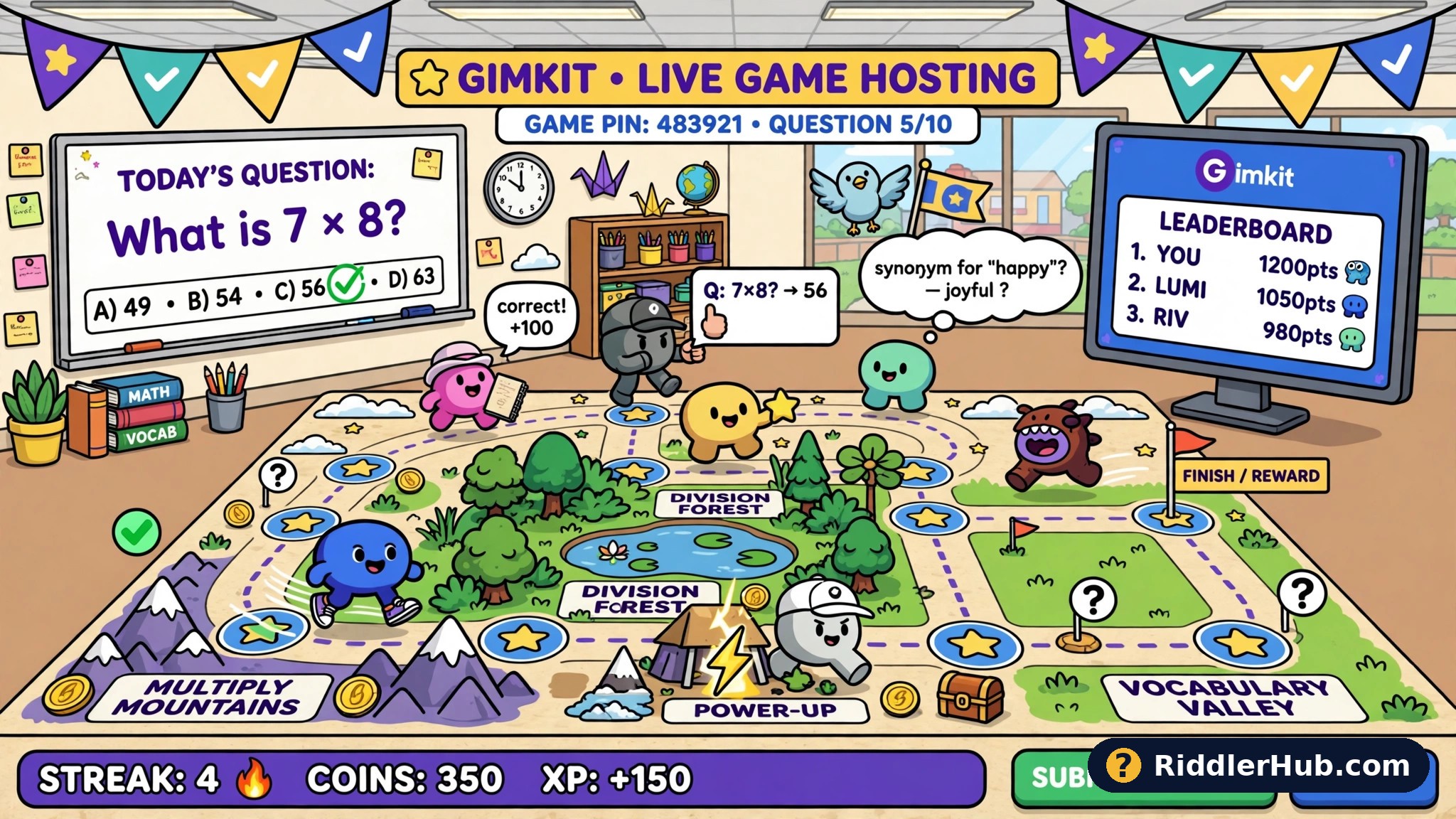
The Mode Picker is the current authority because featured and Pro Exclusive modes rotate.
| Mode | How it plays | Practical use |
|---|---|---|
| Snowbrawl | Snowball battles on a small 2D map | Fast, energetic play |
| Snowy Survival | A cursed player spreads the curse through knockouts | Survival and changing roles |
| One Way Out | Teams explore a spaceship and escape together | Collaborative problem-solving |
| Don’t Look Down | Players climb six summits by answering questions | Accuracy-driven racing |
| Blastball | Teams blast a ball to score soccer-style goals | Team competition |
| Fishtopia | Correct answers earn bait in a fishing world | Calmer 2D play |
Our guide to game mods and custom game experiences shows how changed rules can refresh a familiar game.
How Many Students Can Join a Gimkit Game?
Gimkit’s hard limit is 500 students for a live game, with a separate hard limit of 60 students for every 2D mode. Large sessions also need an internet connection that can keep up.
Plan rules may set a lower limit. Basic members have unlimited access to featured modes but only five players in Pro Exclusive modes, while Pro removes that restriction; a host using a student login is limited to five players.
Gimkit Host Controls and Features
In the lobby, review names before starting. Hover over and click a name in a non-2D lobby to remove someone who does not belong.
During a 2D game, the host panel provides the code, sound, leaderboard, players, timer, and End Game controls. Spectators can move between players and use the Players view to spectate or remove someone.
In supported non-2D modes, clicking a leaderboard name opens Quick Actions: remove a player, adjust the player’s balance by 10%, or use Ice. Quick Actions are unavailable in Team Mode.
Benefits of Hosting a Gimkit Game
One Kit can support a calm review, a team objective, or a 2D world. The host can change the format without rebuilding the same questions.
Goals fit play to the schedule, nickname tools reduce distractions, and late-entry settings balance easy access against a closed group.
Students need only a code, QR code, or link for a standard game. Reports then reveal participation and problem questions for the next lesson.
What Happens After the Game Ends?
Click View Report when the game finishes—lower left for 2D games and upper right for non-2D games. Reports are also available later from the dashboard’s Reports tab.
Use Student Overview, General Overview, or Question Breakdown, and save a PDF if needed.
Common Gimkit Host Problems and How to Fix Them?
The Gimkit Game Code Is Not Working
Use the code from the currently open lobby and check for an extra copied character. If that lobby ended, send the new code, QR code, or link.
Students Cannot Join the Lobby
Check the newest link and Join in Late setting. For a Class game, confirm the correct student account, then retry the link or QR code.
The Game Is Slow or Disconnects
Use a reliable host connection and reduce unrelated high-bandwidth activity. Give a brief freeze time to recover before replacing the session.
A Student Has an Inappropriate Nickname
Remove the player before starting, or use the in-game remove action. Next time, enable the Nickname Generator or connect a Class.
The Start Game Button or a Feature Is Missing
Check the Lobby tab: Start Game is upper right for non-2D games and lower center for 2D games. Missing features may reflect the mode or plan; Quick Actions exclude Team Mode, and Pro Exclusive modes are restricted on Basic.
Tips for Hosting a Successful Gimkit Session
- Test first: join your lobby from a second device.
- Share two ways: project the code and keep the link ready.
- Explain the goal: state what ends the game.
- Set name rules: choose generated names or Classes early.
- Check names: confirm everyone belongs before starting.
- Use staged hints: our daily Connections hint guide shows clues before answers.
- Review afterward: leave time to inspect missed questions.
Is Gimkit Host Free to Use?
Yes. An Educator account and Gimkit Basic are free, and Basic members can host games, create Classes, and collect reports.
Basic generally offers three rotating featured modes. Pro unlocks all modes and adds Assignments plus image and audio questions; new Educators receive a 14-day Pro trial.
Gimkit Host vs. Gimkit Join: What Is the Difference?
One side creates the session; the other enters it:
| Question | Gimkit Host | Gimkit Join |
|---|---|---|
| Who does it? | Educator or organizer | Student or invited player |
| Account required? | Yes, an Educator account | No for a standard live game |
| Starting point | Dashboard, Kit, and Play Live | Code, QR code, or link |
| Who sets the rules? | Host chooses mode and options | Player follows the host’s choices |
| During play | Starts, monitors, manages, and ends | Answers questions and plays |
| Afterward | Opens reports for owned Kits | Has no host controls or report |
Frequently Asked Questions
Do students need a Gimkit account to join a live game?
No, a code, QR code, or link and a display name are enough for a standard live game. Accounts matter only when the host uses Classes or students want account-based XP and cosmetics.
Can I host a Gimkit game for free?
Yes, Gimkit Basic lets a free Educator account host games, create Classes, and collect reports. Its featured modes rotate, while Pro provides unrestricted mode access and features such as Assignments.
Where can I find the Gimkit game code?
The code appears in the lobby after you select a mode, set the game options, and continue. In a 2D game, it remains upper right, where clicking it enlarges it or copies the game link.
Can students join after a Gimkit game has started?
Yes, if Join in Late is enabled, and live games allow late joining by default. If the host disabled the setting, the student must wait for the next session.
How do I remove a player with an inappropriate nickname?
Before play, hover over the player’s name in the lobby and click it to remove the player. During most games, open the player from the leaderboard or Players view and choose remove.
Conclusion
A Gimkit host turns a Kit into a live session by choosing a mode, setting goals and entry rules, opening the lobby, and sharing its code, QR code, or link. Students enter without accounts for a standard game, while the host monitors names, pacing, players, and results from start to finish. Clear setup prevents most access problems and keeps the class focused on answering questions carefully and calmly.
Before your next session, prepare the Kit, test the lobby on a second device, choose the right nickname strategy, and decide whether late entry should stay open. When students are ready to enter, send them to the official gimkit join page and start only after every expected player appears in the lobby.